Corporate workflows in pictures
Sign in, invite employees and manage submitted medical leave without opening private health records.
Use this guide to enter the right company workspace, invite employees and review medical leave they submitted. Owners and HR administrators have different permissions. Company access does not grant access to an employee's private Health Passport.
The access screenshots below were captured from the public portal on 5 October 2026. Signed-in screenshots are pending an approved sample workspace; the task steps link to the detailed guides.
1. Sign in on the correct portal
Open Corporate workspace. New users should open their invitation first, verify the invited inbox, review the access being offered and explicitly accept. If asked to create a first password, enter it twice. Existing accounts keep their password.
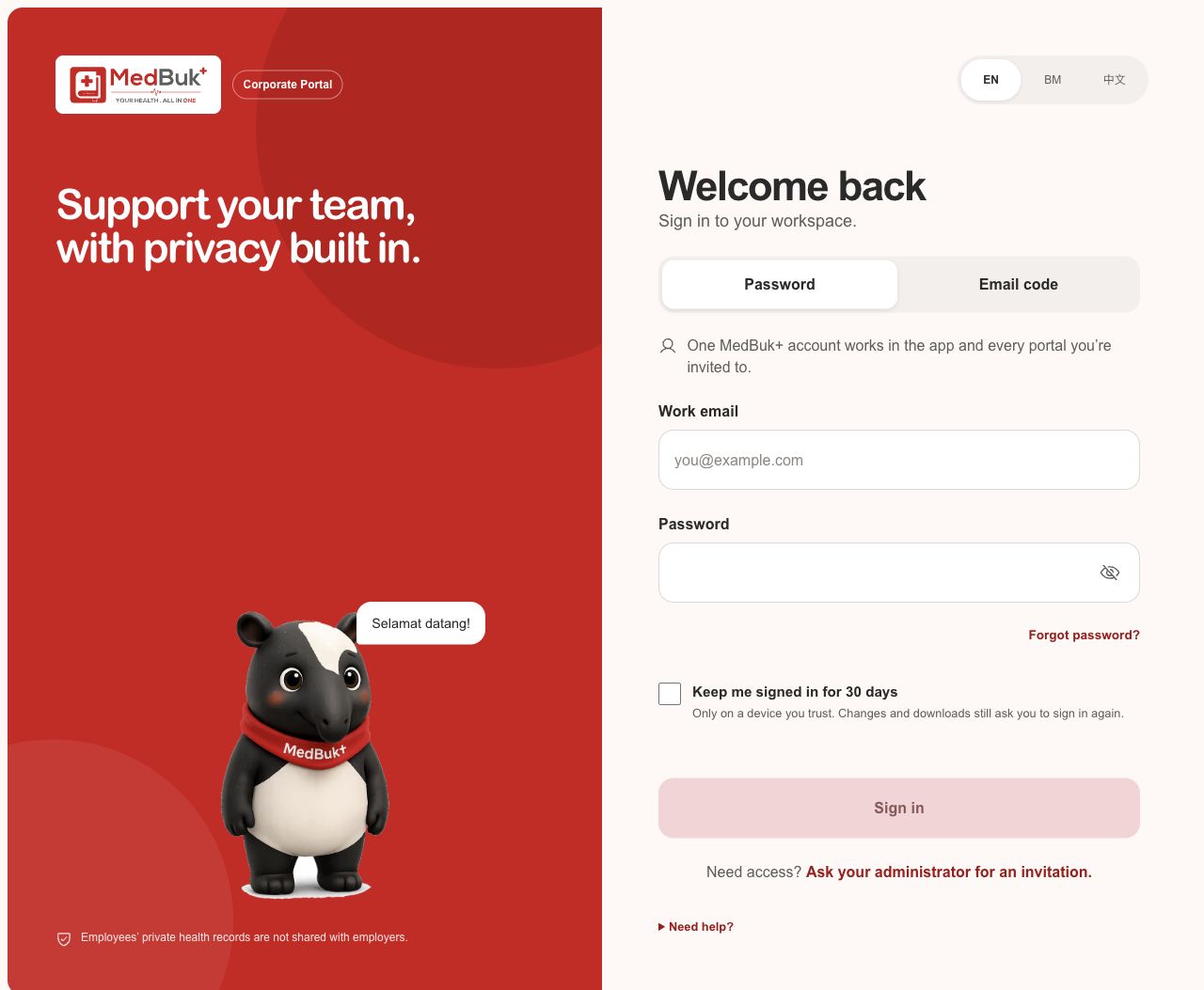
- Choose a method. Use Password when you already have a password, or Email code for a verified account.
- Work email. Enter the email attached to your invited MedBuk+ account.
- Password. Use your existing password. Show password only when the screen is private.
- Forgot password? Start inbox-verified recovery. A reset ends existing sessions; sign in again afterwards.
Expected result: the portal opens the workspace or Platform areas your current role allows. Signing in does not accept an invitation or grant a new role. A sensitive action may ask you to authenticate again within its five-minute action window.
If you cannot continue: check the email and portal, wait for the resend timer, then use the newest code. For an expired or revoked invitation, ask the inviter to review the status. If access is missing, ask the authorized owner to check your role; another portal's session cannot restore it.
2. Invite an employee or HR administrator

Read workflow as text
- Open the intended company workspace and its invitations area.
- Choose the employee or HR administrator role allowed by the current role.
- Review the company, invited email and role before sending.
- Check invitation and delivery states separately; provider acceptance is not inbox delivery or membership.
- The recipient verifies the invited inbox and explicitly accepts; owners and HR use the portal, while employees may use the app handoff.
- If sending is uncertain, refresh status before replacing the unused invitation.
- Check the company shown in the workspace selector. If changing it, choose the destination and confirm Switch workspace.
- Open Employees and the invitation drawer, or Invitations. Enter the recipient's email.
- Choose the employee role. A company owner can also invite an HR administrator; HR administrators invite employees only.
- Select Review invitation, check company, address and role, then Send invitation.
- Check the invitation list. Provider acceptance is separate from inbox delivery and membership acceptance.
- Employees continue in the personal app using Open in MedBuk+, verify the invited email and explicitly accept. Owners/HR continue through the portal invitation flow.
Expected result: a pending invitation is visible first; membership appears only after acceptance. Sending does not share the employee's personal health records.
If sending is uncertain: refresh status before retrying. For a replacement, review the address first; replacing revokes the previous unused link. See individual and bulk invitation steps and the employee app handoff.
3. Review submitted medical leave
Read workflow as text
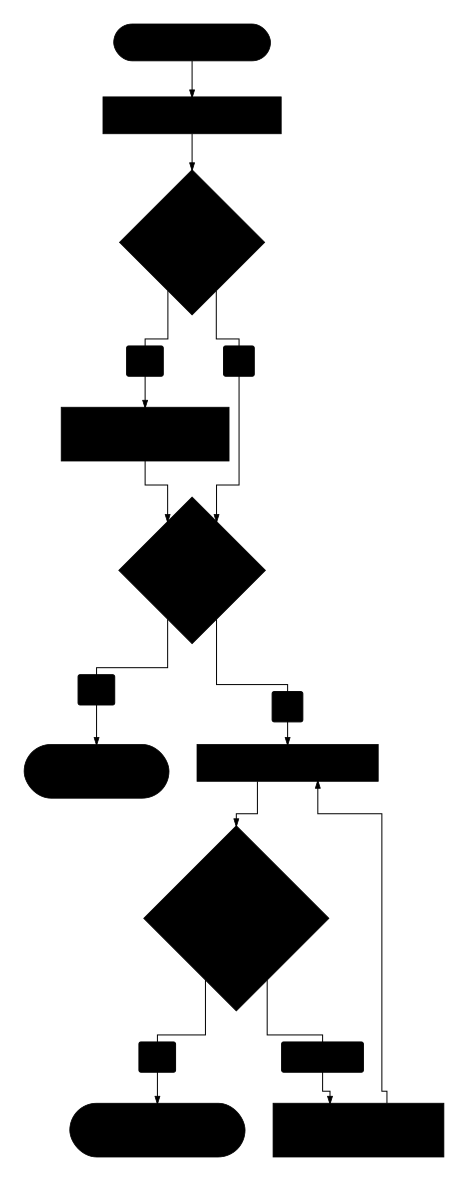
- Open Medical leave in the intended company workspace.
- Select a request submitted by a current company member.
- Read the submitted dates, status and optional note or certificate reference.
- View an unexpired certificate photo only when the employee explicitly shared it and the reviewer is authorized.
- A reviewer cannot handle their own request; another authorized reviewer must act.
- Record and confirm the review status; if the decision is unclear, refresh before repeating it.
- This operational workflow does not establish medical validity or leave entitlement.
- Open Medical leave in the intended company workspace.
- Select a request submitted by a current company member. Read only the information included in that request.
- Follow the available review action and confirm the recorded status before moving on.
- If the request changed or the response is unclear, refresh its status before repeating a decision.
Expected result: the submitted request has a confirmed review status. Company membership is not consent to open the employee's Health Passport or mood history.
See medical-leave review for the permitted information and role restrictions.
4. Check company settings and participation
Owners use Workspace settings to edit permitted display/contact details and explicitly save. Participation shows membership and invitation operations. Analytics uses permitted company summaries; it is not an employee health score.
If a report is unavailable, retry after checking the workspace and connection. A blank or unavailable result must not be read as zero. For account recovery, see Corporate sign-in.