
Health Passport
Your private record of everything you have saved, and how to find, read and hide an entry.
Your Health Passport is your private record of the meals and readings you have saved, with the time and how each was recorded. Only you can see it. You choose if and when to share anything from it, for example with a doctor.
What is in my Health Passport?
Open the profile area and choose Health Passport. The lock reminds you the passport is private. Values are shown as you entered them.
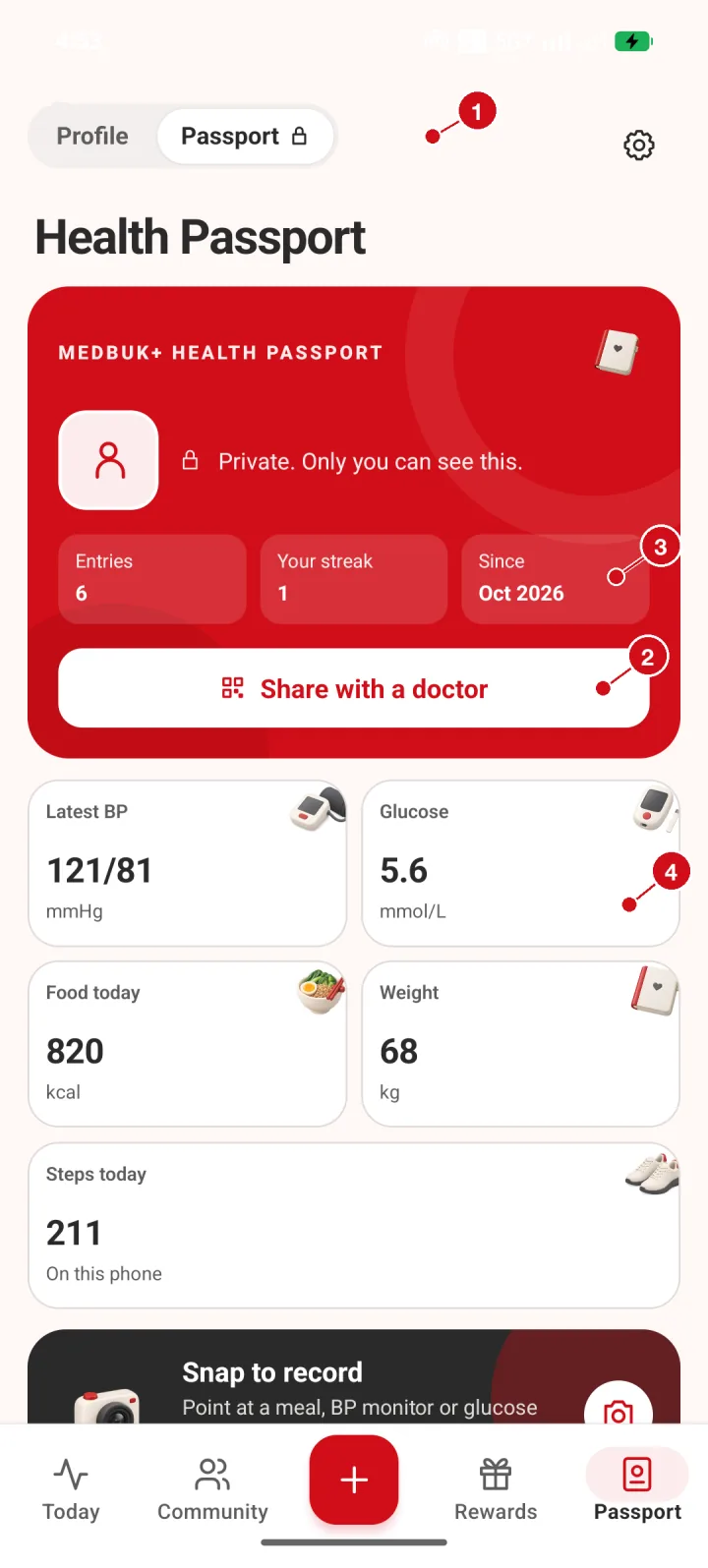
- Profile and Passport. Switch between your profile and your Health Passport. The lock means the passport is private to you.
- Share with a doctor. Show a one-use code to your doctor, who scans it in their own MedBuk+ app. It is not a link to send, and a phone camera will not open it. Before you approve, you see what they will see and choose 15 minutes, 30 minutes or 1 hour. Entries you removed are never shown.
- Summary. Your number of entries, your logging streak and when you joined.
- Latest values. Your most recent blood pressure, glucose, food, weight and steps, shown as you entered them.
How do I find a record?
Scroll down to your private mood week, the filters and the timeline. Use a filter such as Food, Blood pressure or Glucose to narrow the list.
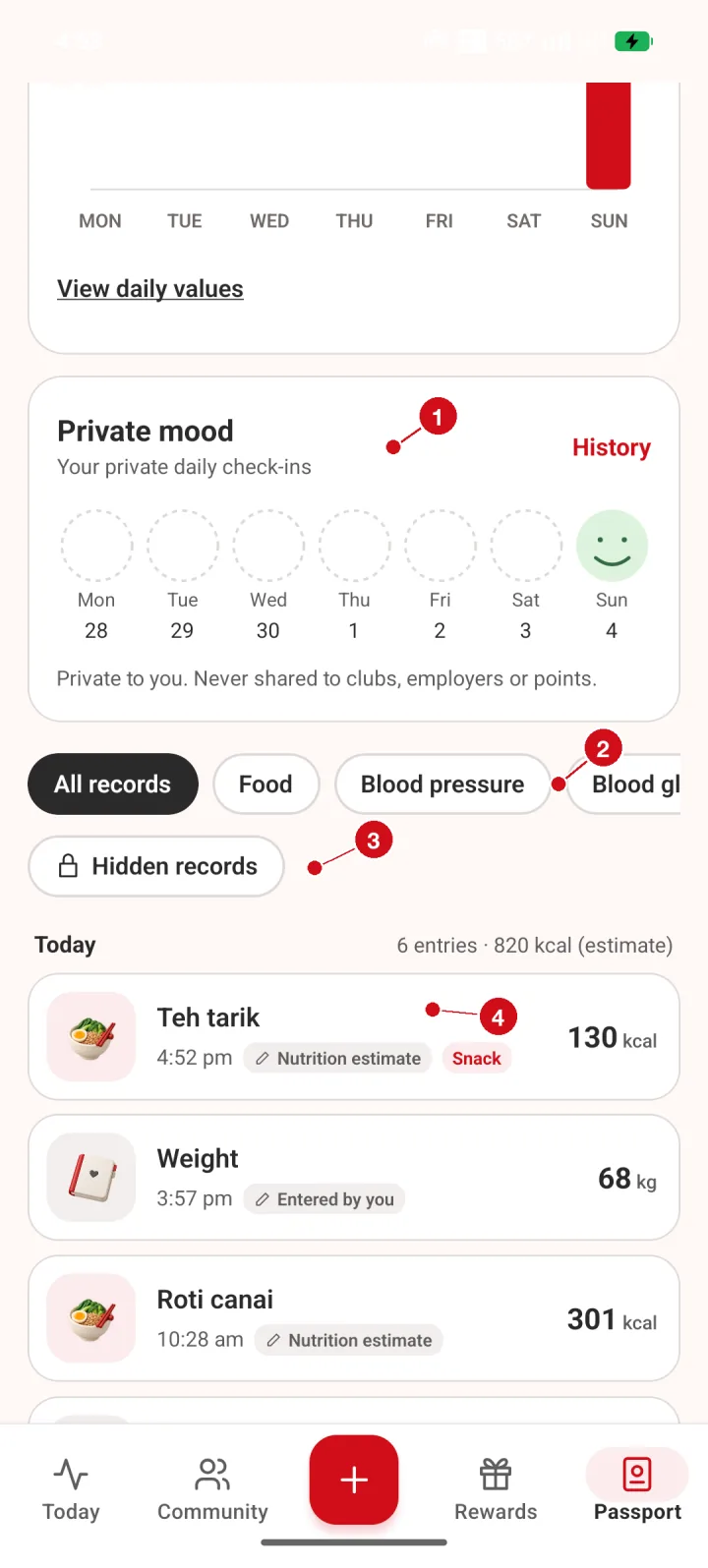
- Private mood. A private week view of your mood check-ins. Tap History to see more.
- Filters. Filter your records by All, Food, Blood pressure, Glucose and more.
- Hidden records. Entries you hide from your timeline are kept here.
- Timeline. Your records, newest first, with the time and how each was recorded.
What do the entries tell me?
Each entry says whether you typed the value or whether it is an estimate, such as a nutrition estimate for a meal. Below the timeline you can open care access and privacy choices.
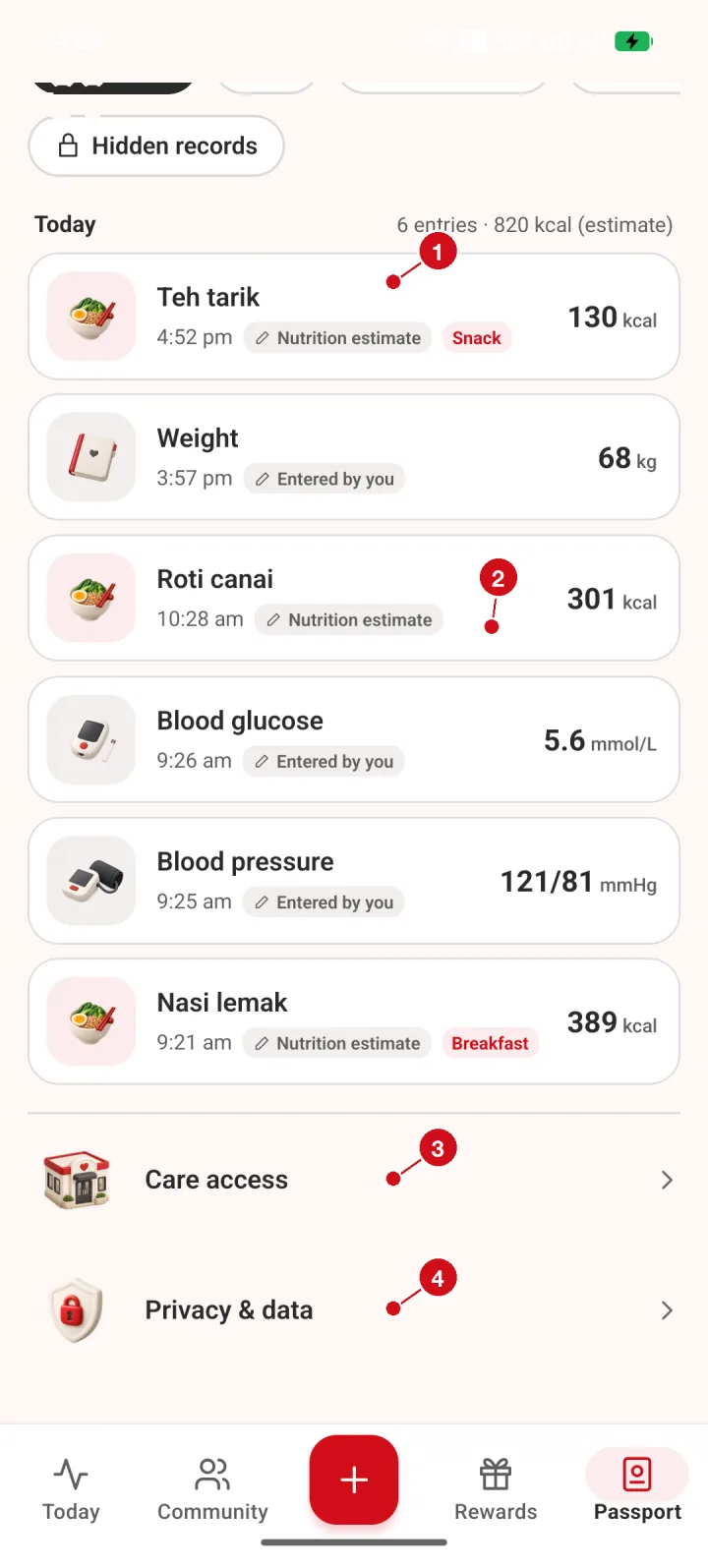
- Each entry. Each row shows what was recorded, when, and how: Entered by you, or Nutrition estimate for meals. Tap a row to see details.
- How it was recorded. The label tells you whether you typed the value or it is an estimate.
- Care access. Manage what a clinic or care provider can see.
- Privacy and data. Open privacy choices, data download and account options.
How do I open one record?
Tap an entry to see the saved value and how it was recorded. Use Edit on the same sheet to change an entry you added. You can remove an entry from your Passport; an Undo appears for a few seconds, and removed entries stay listed under Hidden records, where you can restore them. Removing never erases anything. To erase your records, delete your account.
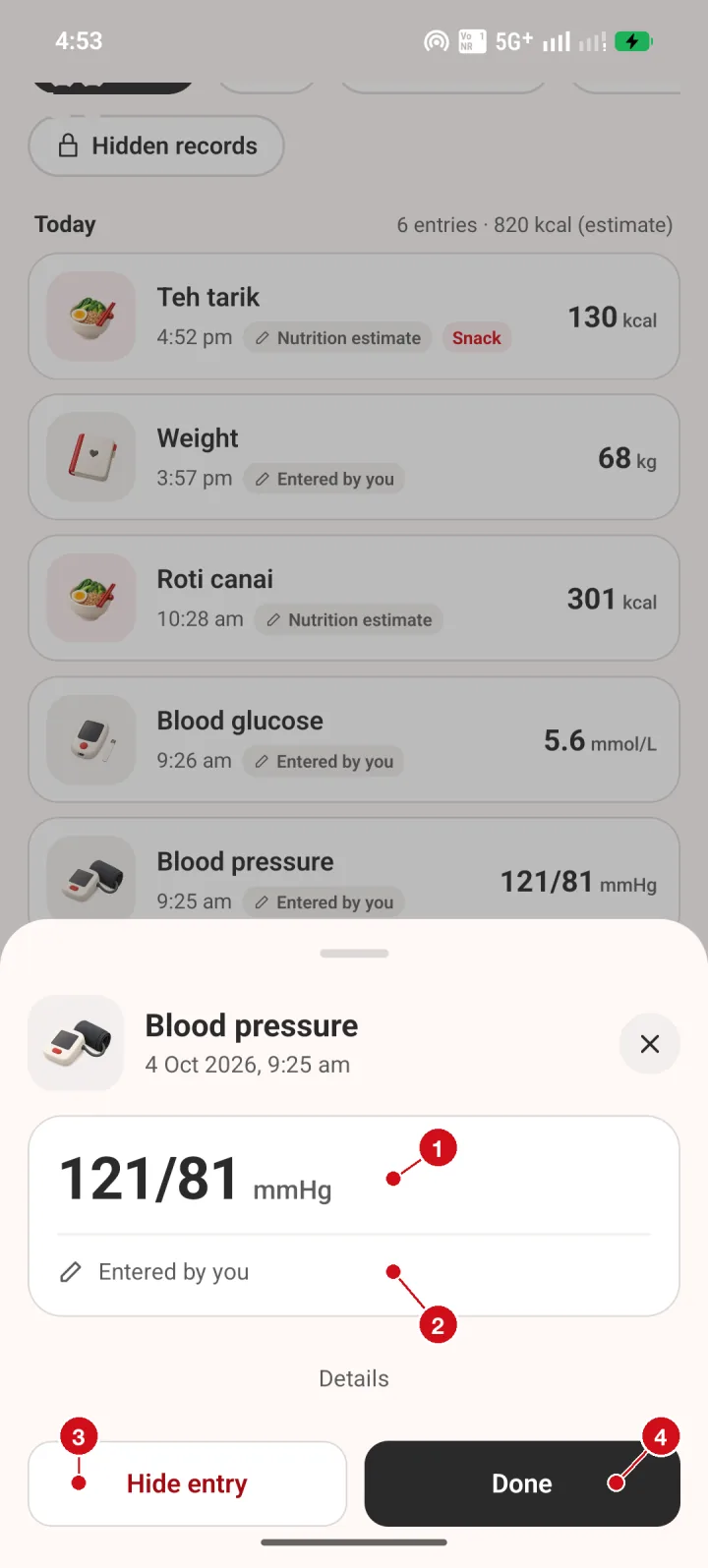
- Value. The number exactly as saved. MedBuk+ records it and does not say what it means.
- How it was recorded. Entered by you means you typed it in.
- Remove from Passport. Takes the entry off your main timeline. Removed entries are listed under Hidden records, and you can restore them.
- Done. Closes the detail sheet.