Settings, privacy and your data
Profile, language, units, notifications, privacy notices and how to download your readings or ask for account deletion.
Your health records and community activity are private by default. Settings is where you choose your language, units and notifications, and Privacy & policies is where you read how your data is handled, download your readings and ask for your account to be deleted.
What is on my profile?
A profile is optional. Your Health Passport stays private either way, and the gear icon opens Settings.
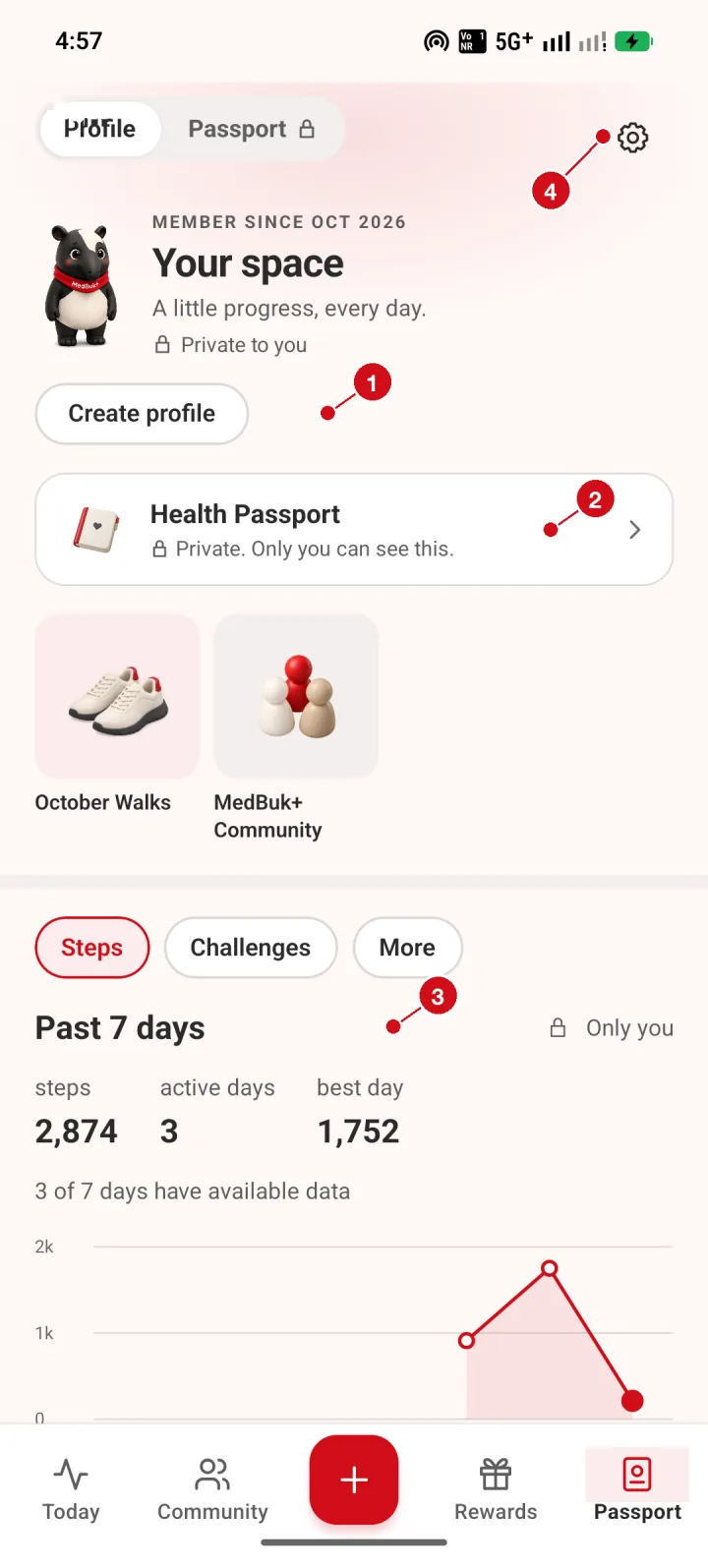
- Create profile. Optional. Set up a profile with an alias so people in clubs can recognise you. Profiles are reviewed before others see them.
- Health Passport. Your passport is private. Only you can see it.
- Past 7 days. Steps for the past week. Days without data are shown as missing, not zero.
- Settings. The gear opens Settings.
How do I change language, tracking and reminders?
Settings opens with language, what you track and meal reminders.
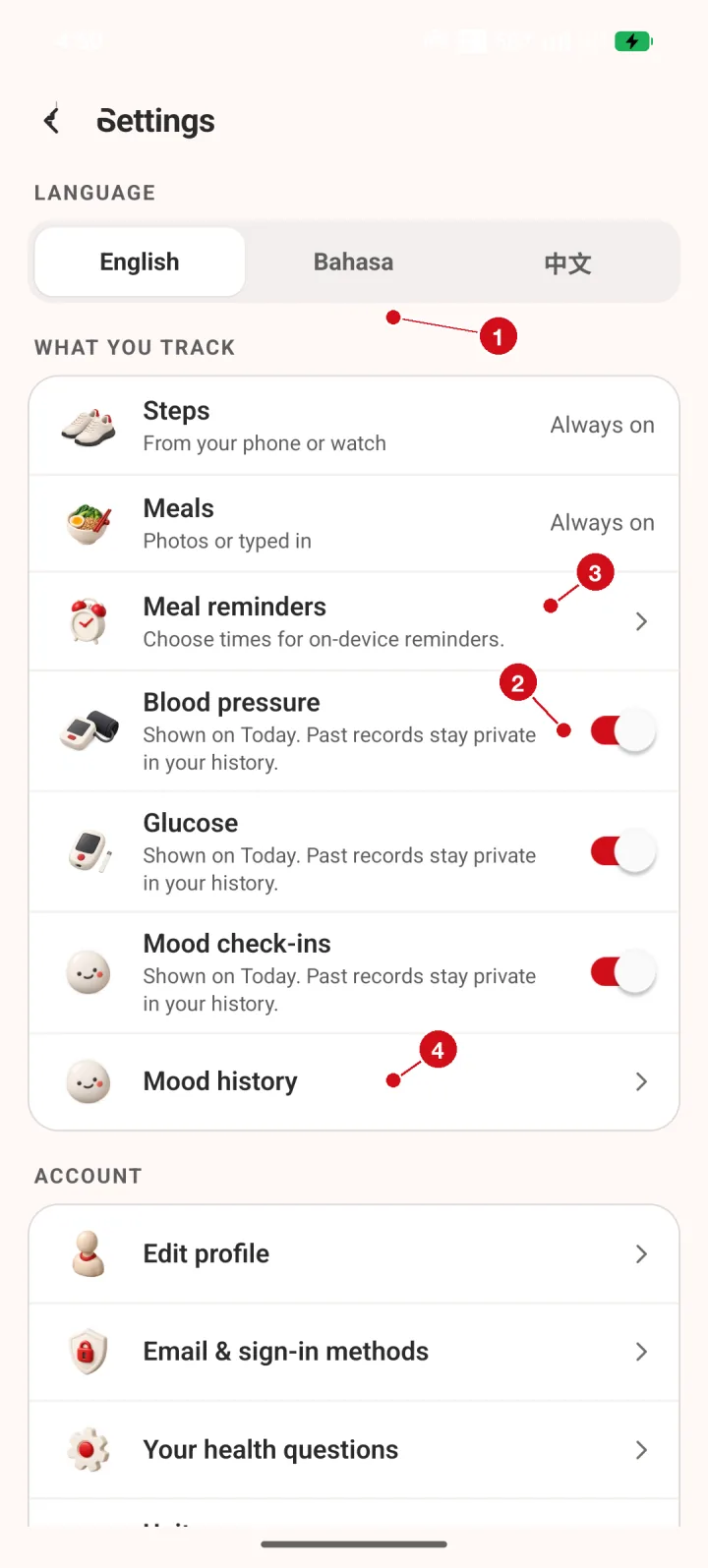
- Language. Choose English, Bahasa or Chinese.
- What you track. Turn blood pressure, glucose and mood on or off for Today. Past records stay private in your history.
- Meal reminders. Choose times for on-device meal reminders.
- Mood history. Open your private mood history.
Where are units, sharing and notifications?
Scroll down for units, step access, club sharing and notification choices.
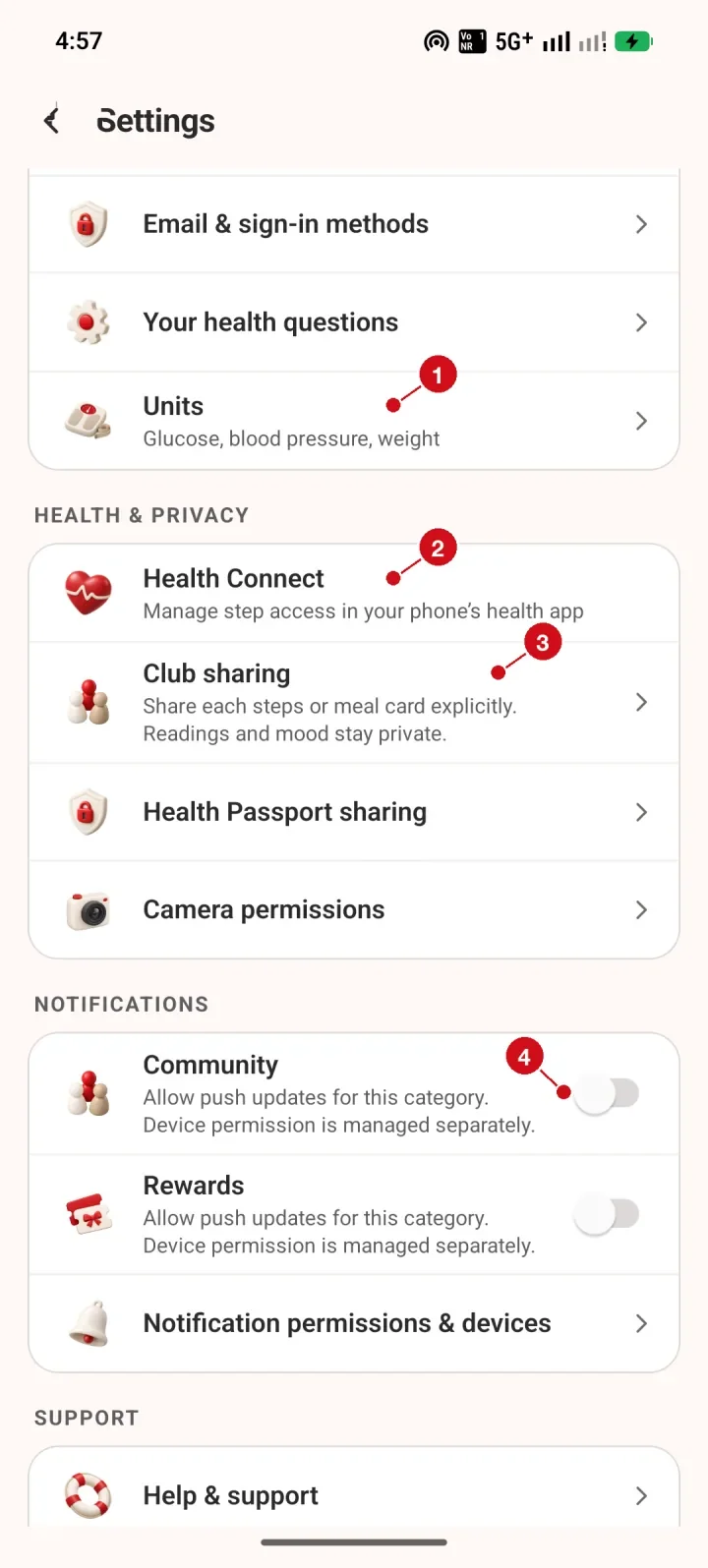
- Units. Choose how readings are typed and shown.
- Health Connect. Manage step access in your phone health app.
- Club sharing. Share each steps or meal card explicitly. Readings and mood stay private.
- Notifications. Switch push updates for Community and Rewards on or off. Phone permission is managed separately.
How do I change units?
Units change how numbers are typed and shown. Your passport stores standard units, so a change never alters a saved value.
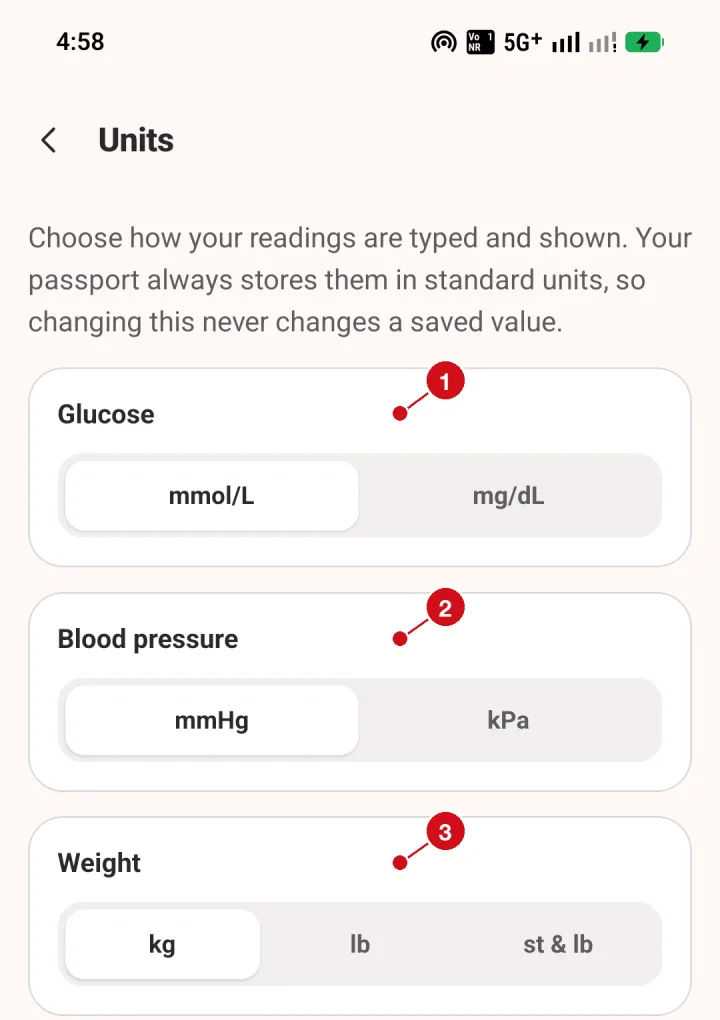
- Glucose. Choose mmol/L or mg/dL.
- Blood pressure. Choose mmHg or kPa.
- Weight. Choose kg, lb or stone and pounds. Your passport always stores standard units, so changing this never changes a saved value.
Where are the privacy notices?
Privacy & policies explains how health records are stored, how photos are handled and what you can choose to share.
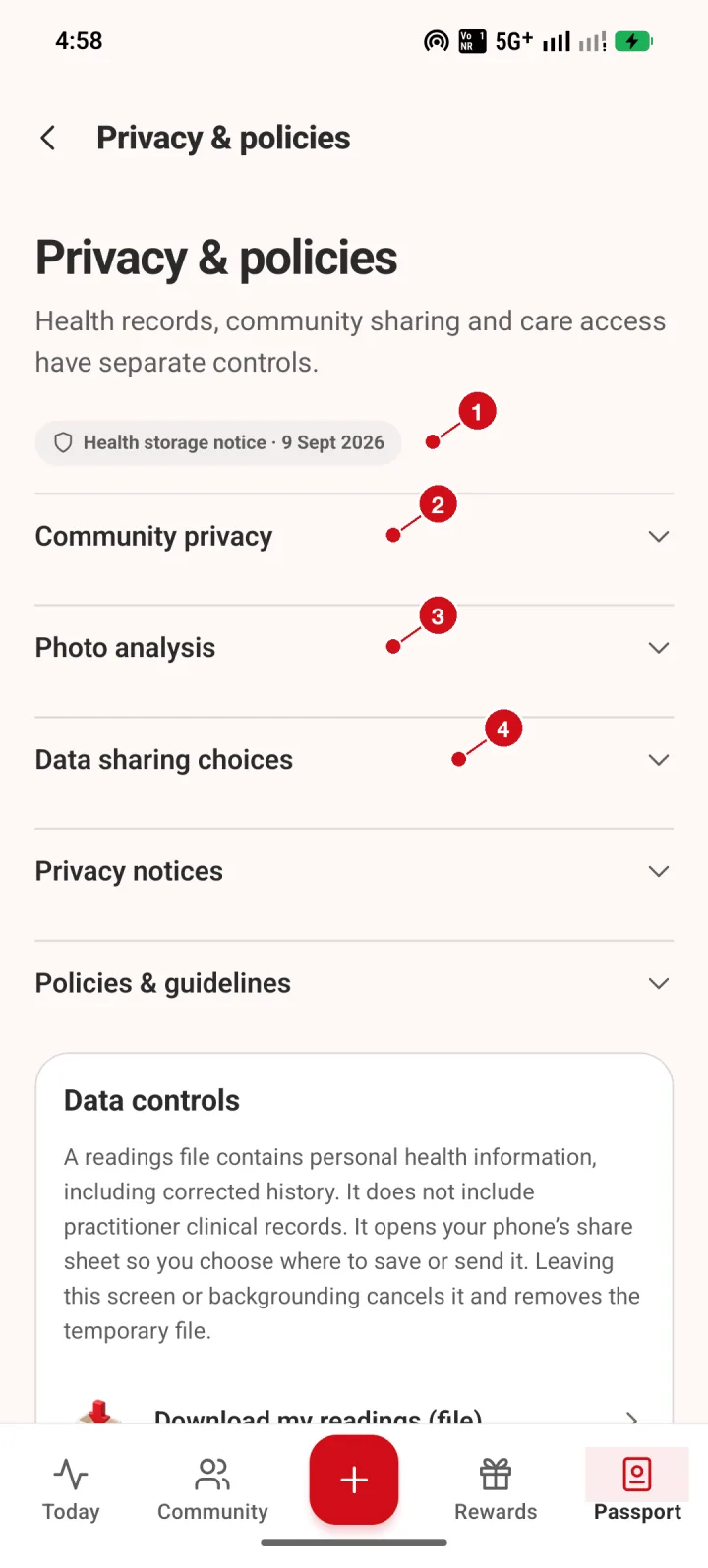
- Health storage notice. The notice that explains how your health records are stored.
- Community privacy. Open to see how your community activity is shared.
- Photo analysis. Open to read how meal and meter photos are handled.
- Data sharing choices. Open to see what you can choose to share and with whom.
How do I download my readings or request deletion?
Data controls creates a file of your readings and opens your phone's share sheet, so you choose where it goes. Account privacy covers deletion requests; see Account privacy and deletion for the full process.
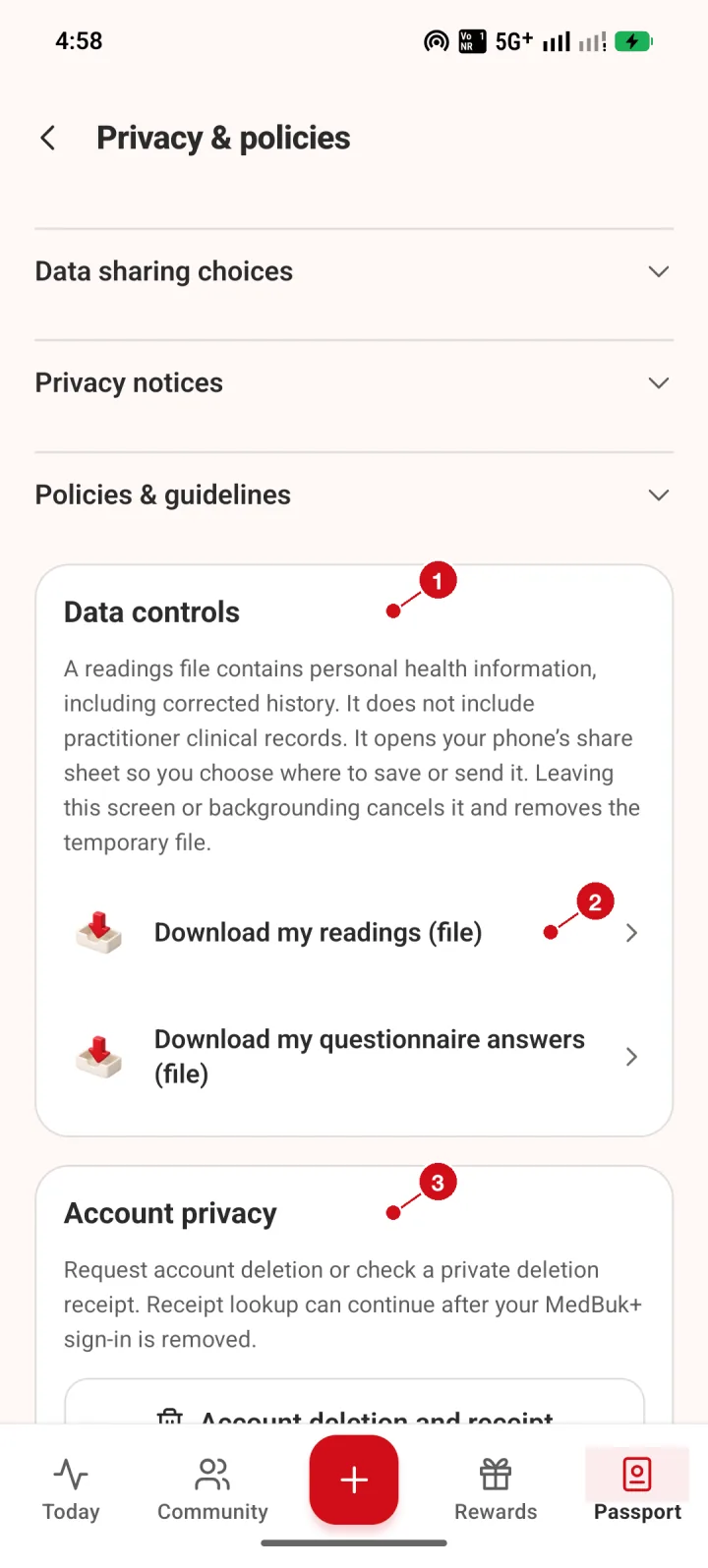
- Data controls. Download my readings creates a file of your readings and opens your phone share sheet so you choose where it goes.
- Download. Tap to create the readings file. Leaving the screen cancels it and removes the temporary file.
- Account privacy. Request account deletion or check a private deletion receipt.